


Adjusting Resource Sizes, Positions, and Detail
While the Ilograph layout engine determines the sizes, positions, and detail levels of resources automatically, these properties can be adjusted by diagram editors on a per-persepctive basis.
In relation perspectives, resources are sized automatically based on their relations to each other. In general, the more relations a resource has in a perspective, the larger it appears. Diagram editors can further adjust this sizing on a per-perspective basis using scale overrides:
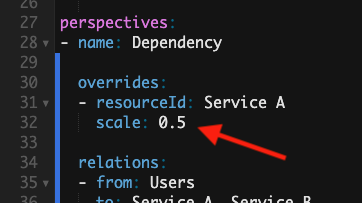
In this perspective, the scale value of 0.5 assigned to Service A means it will be rendered at half size:
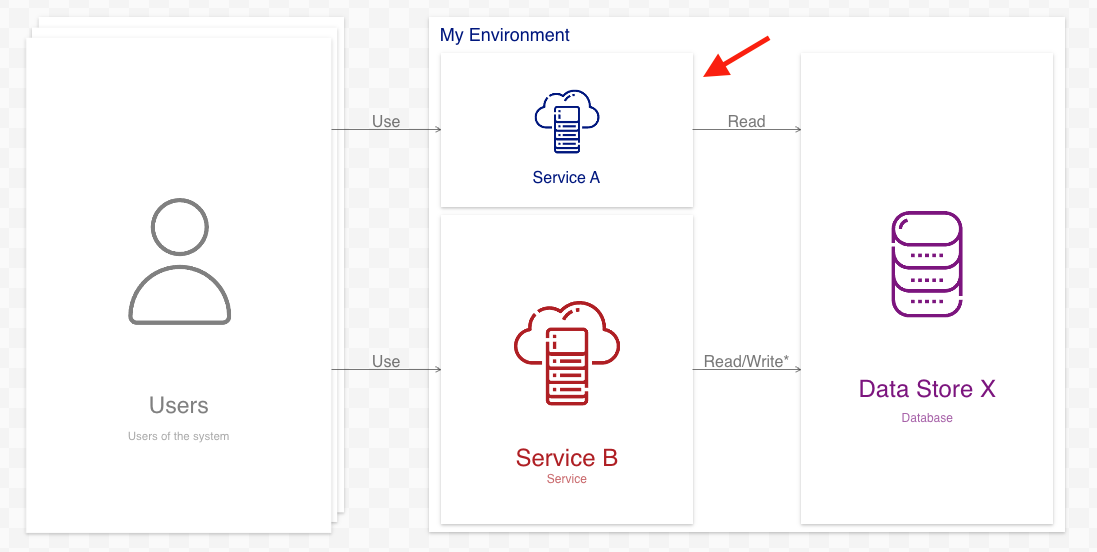
Scale overrides can be less than 1 (to make resources smaller) or greater than 1 (to make them larger). Scale overrides cannot be negative. Whether a resource scales horizontally, vertically, or both depends on how it is laid out relative to its neighbors. Multiple resources can be scaled at once using a comma-separated list of resources in the resourceId field:
  overrides:
  - resourceId: Service A, Service B, Service C
    scale: 0.5
Scale overrides can be paired with detail overrides (see below) to emhpasize or de-emphasize resources.
In relation perspectives, the layout engine places resources horizontally according to their relations and parent (context) resources. This results in resources generally flowing left-to-right:
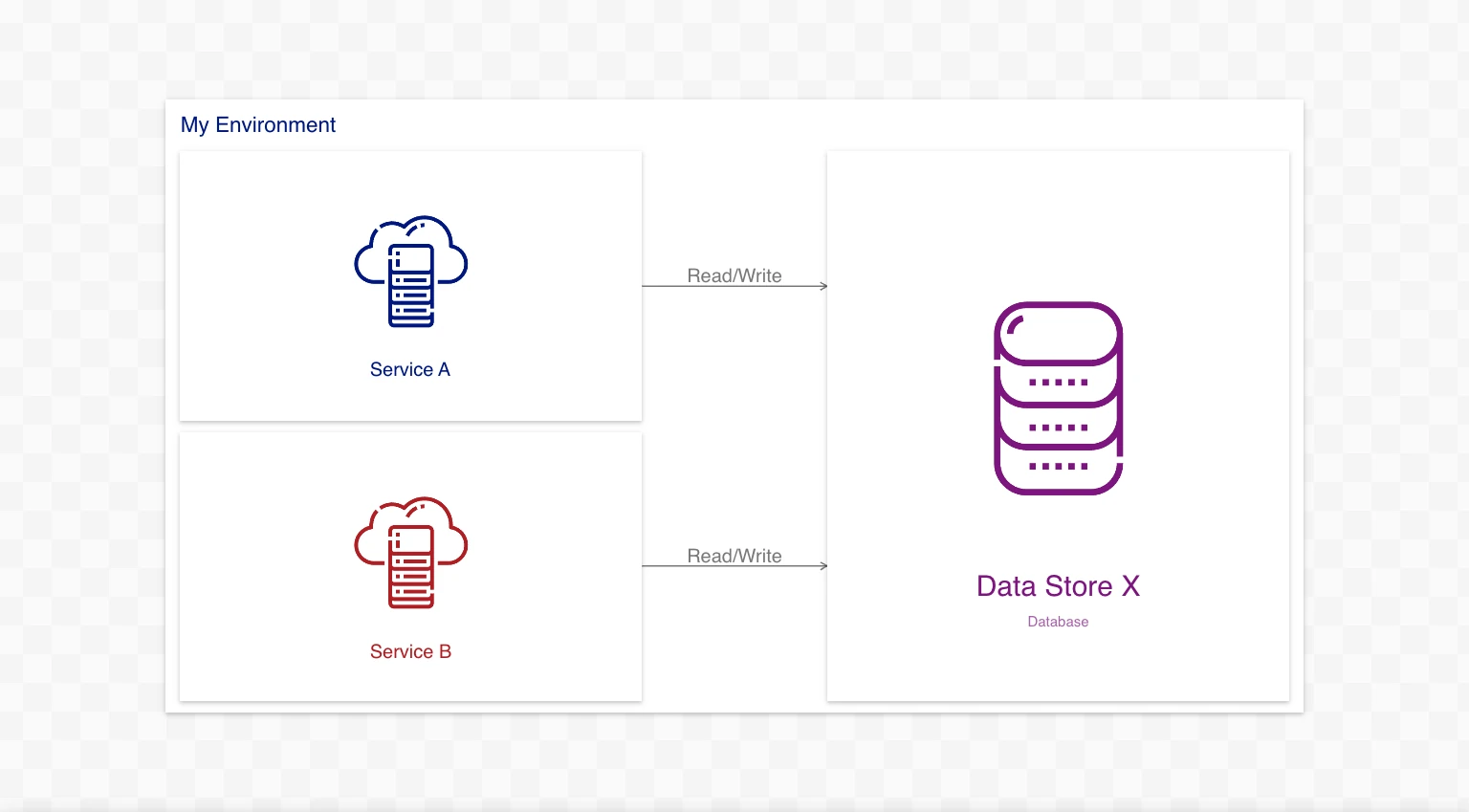
But what about top-to-bottom positioning? In the above image, what causes Service A to appear above Service B?
The answer is top-to-bottom order is determined by when resources are first referenced in the perspective’s relations. When two or more resources appear in the same column, resources referenced earlier are drawn above resources referenced later.
Let’s look at a very simple example. Below is the definition of the above perspective. Notice that Service A is referenced before Service B:
perspectives:
- name: Dependency
  defaultArrowLabel: Read/Write
  relations:
  - from: Service A
    to: Data Store X

  - from: Service B
    to: Data Store X
Reversing these relations results in Service A and Service B flipping positions:
Reference order also applies when resources are separated by commas; resources that appear earlier in the list are considered to be referenced first. In the below code, Service A is referenced before Service B and thus will be rendered above it:
perspectives:
- name: Dependency
  defaultArrowLabel: Read/Write
  relations:
  - from: Service A, Service B # By appearing first, "Service A" will be rendered above "Service B"
    to: Data Store X
Reference order applies regardless of if a resource is referenced directly (like above), by an alias, multi-reference matching, or a relative reference.
For complex perspectives, especially those that use advanced reference methods like aliases and multi-reference matching, changing the relations around for the sake of resource positions may not be feasible. In these rare cases, a trick can be employed to control resource positioning. By creating a relation with only the “from” property and placing it at the beginning of the relation list, diagram editors can effectively specify resource order without modifying the existing relations:
perspectives:
- name: Dependency
  defaultArrowLabel: Read/Write
  relations:

  - from: Service B # Added to make "Service B" appear higher

  - from: Service A
    to: Data Store X

  - from: Service B
    to: Data Store X
The results of adding this “from-only” relation looks like so:
As usual, this single “from” relation can reference multiple resource at once by separating them with a comma. These resources will be rendered top-to-bottom in the given order:
perspectives:
- name: Dependency
  relations:

  - from: Service B, Service X, Service Y #... etc.

  ... # original relations here
Diagram viewers can adjust the level of detail using the slider in the top-right of the app. As they do so, resources will expand and collapse to show (or hide) their child resources:
Diagram editors can override how individual resources expand and contract on a per-perspective basis using detail overrides:
  perspectives:
- name: Dependency
  overrides:
  - resourceId: Ilograph AWS Instance
    detail: minimize
  ...
By setting the detail override to minimize on the Ilograph AWS Instance resource (center), this resource will stay collapsed regardless of what the viewer sets the detail level to:
Note that if the user selects a mimized resource (or makes it full-screen), the resource will expand as usual.
Similarly, by setting the value to maximize, the resource will stay expanded:
  ...
  overrides:
  - resourceId: Ilograph AWS Instance
    detail: maximize
  ...
Note that a maximized resource will still collapse if its parent resource (if it has one) becomes collapsed.
Detail overrides can be paired with scale overrides (see above) to emhpasize or de-emphasize resources.