


Ilograph Desktop Activation
Ilograph Desktop license activation and re-validation can be done on machines with or without internet access.
To active Ilograph Desktop on an online machine, paste your license key into the “License key” input field of the license page:
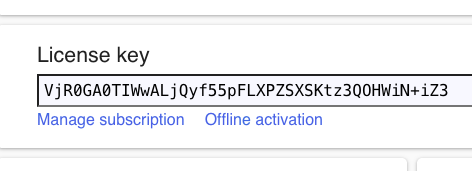
The app will automatically verify the key and download the required license.
To active Ilograph Desktop on an offline machine, you will need a second online (internet-enabled) machine and a way to copy data from the online machine to the offline machine.
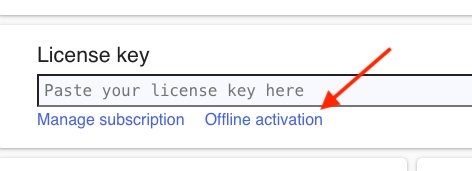
Begin by installing Ilograph Desktop on the offline machine and starting the app. When the license window appears, click the “Offline activation” button:
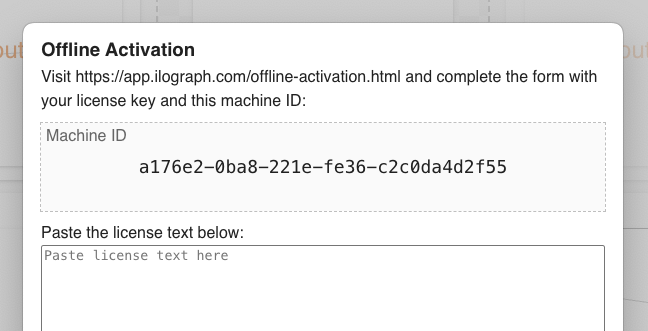
Write down the Machine ID that appears in the dialog:
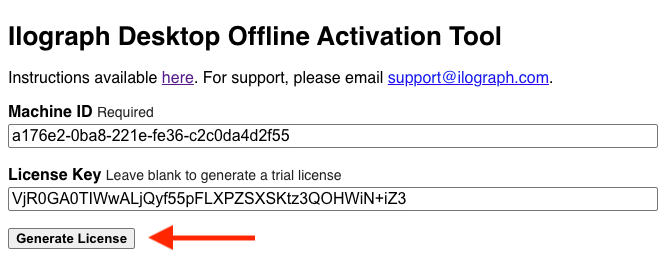
On an online machine, open the Ilograph Desktop Offline Activation Tool. Enter the Machine ID from the previous step and your license key. Then click the “Generate License” button:
If the license key is valid, you will be presented with a re-validation URL and the license text:
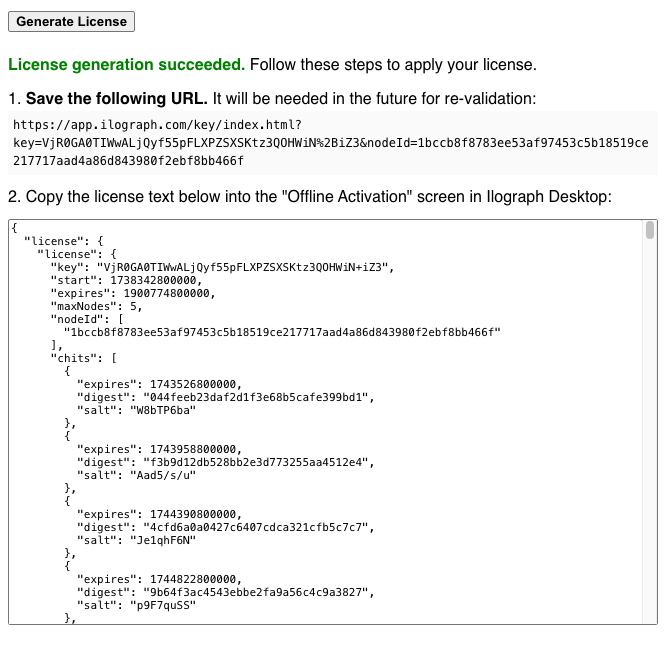
Be sure to save the re-validation URL on the online machine for future re-validation.
Copy the the license text over to the offline machine, and paste it into the license field of the Offline Activation window:
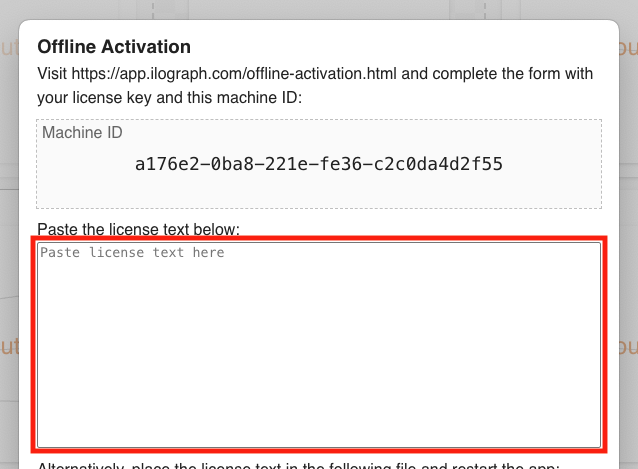
If the license is valid, the Offline Activation window will close and the app will be ready to use.
The app periodically re-validates paid licenses. When connected to the internet, this happens automatically. On an offline machine, a manual offline key validation window will appear asking for a validation code:
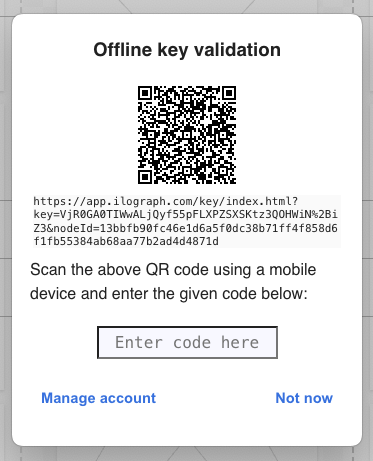
To obtain the code, you can either:
- Visit the re-validation URL saved during activation.
- Use a mobile device to scan the QR Code. The mobile device will need internet access.
For support or questions, please contact support@ilograph.com.